
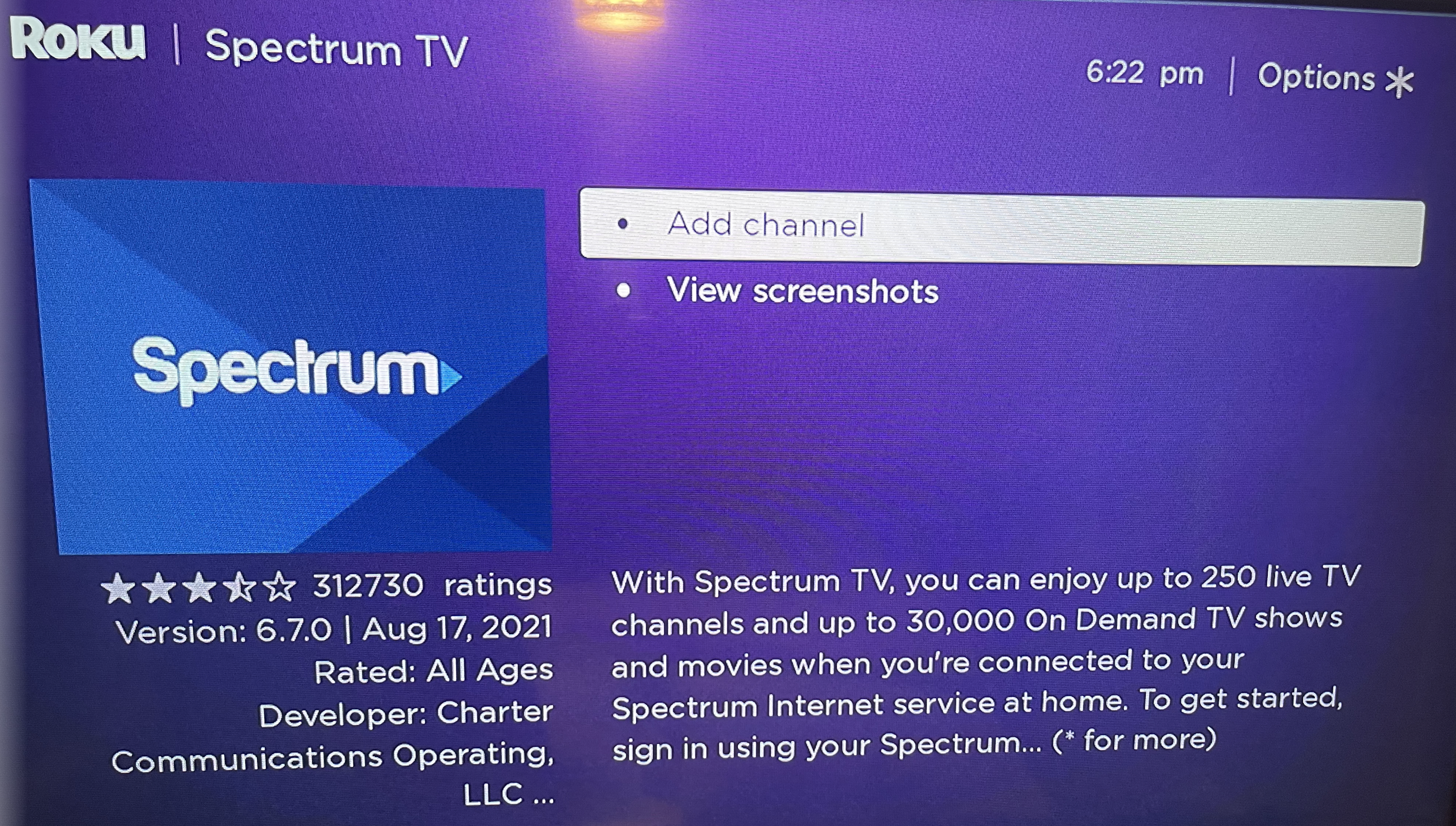
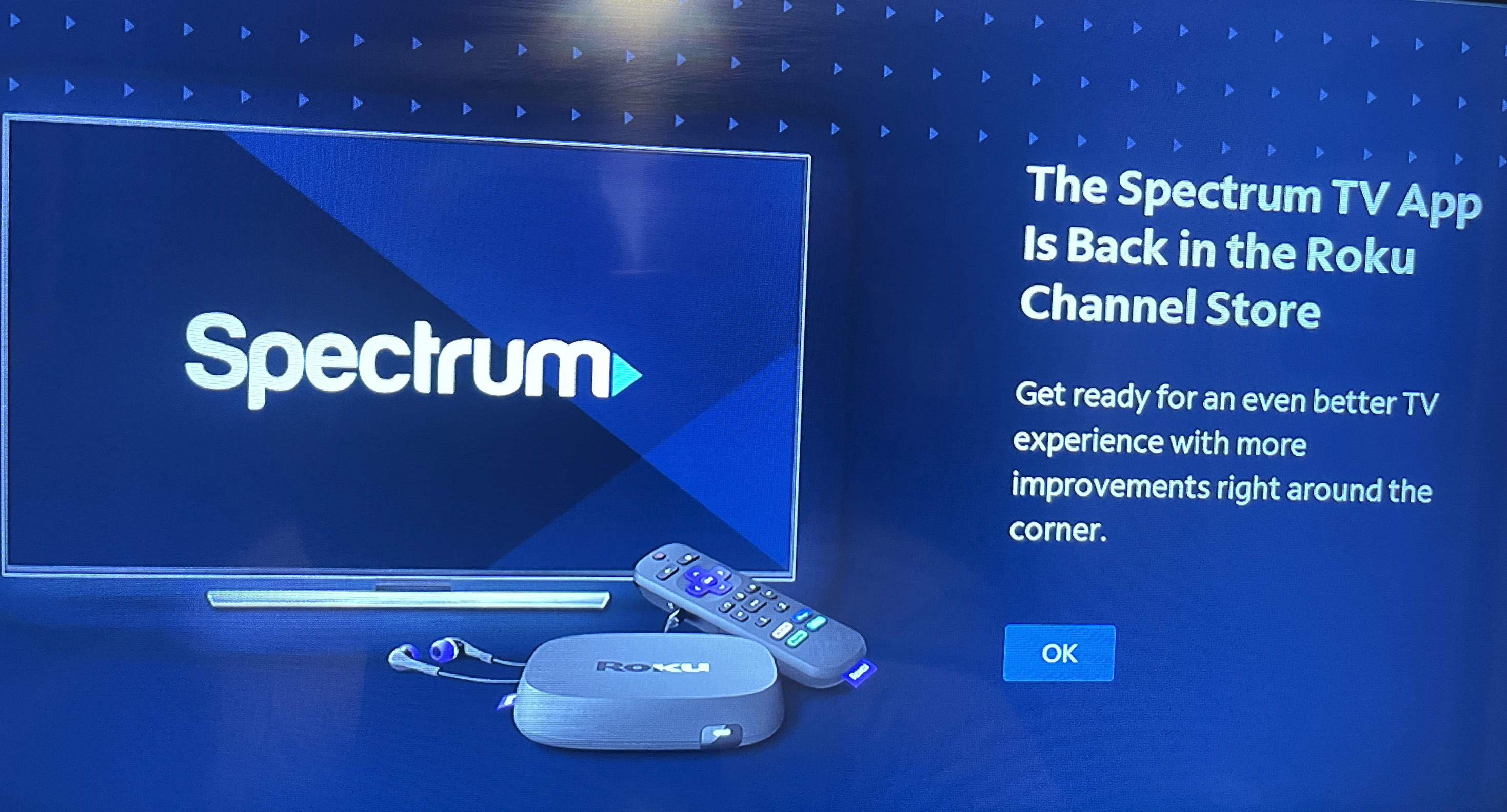
- Go to the Roku Channel Store and download the Spectrum TV app.
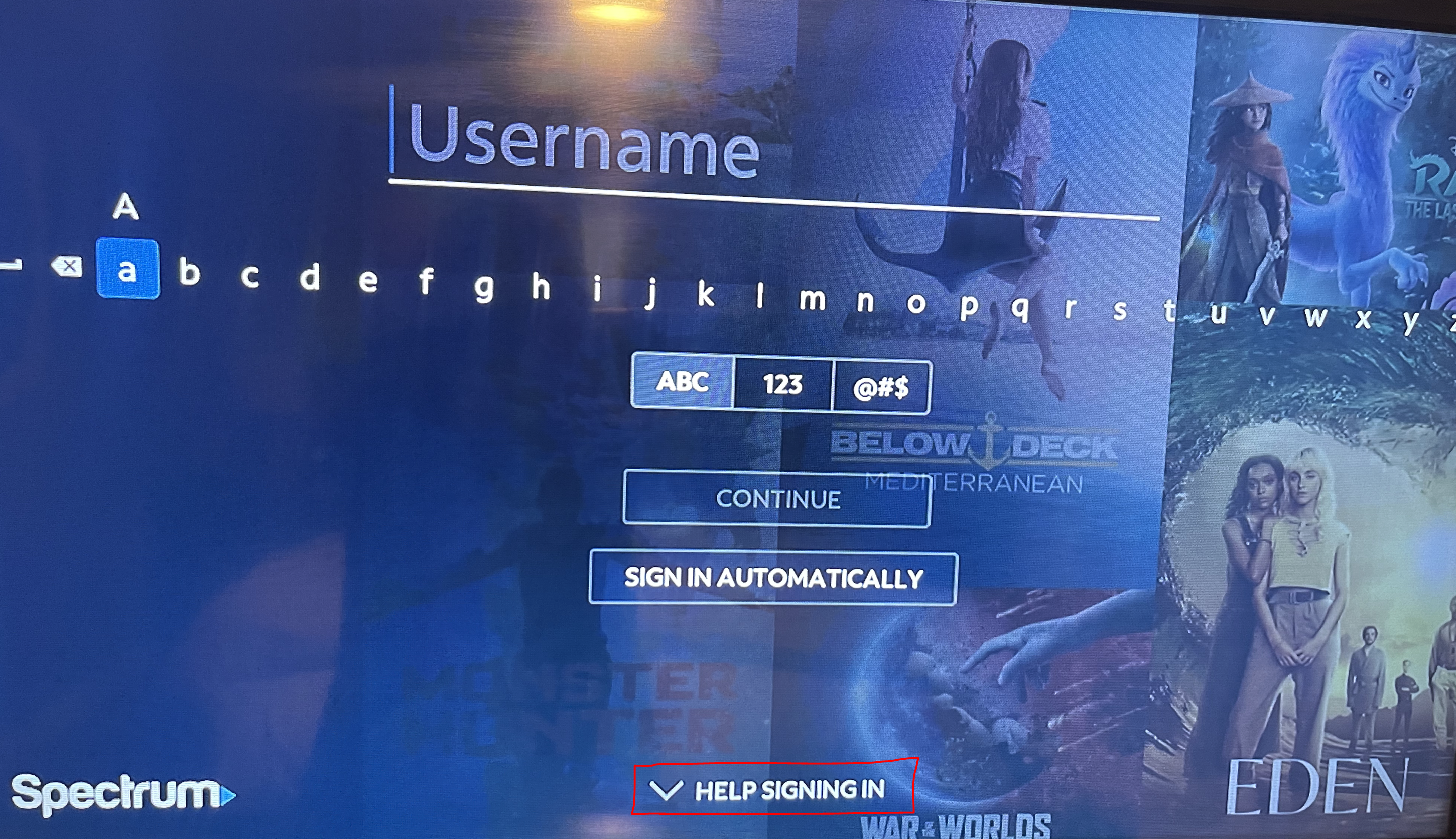
- When the Spectrum TV app is opened, scroll down to the 'HELP SIGNING IN' section.
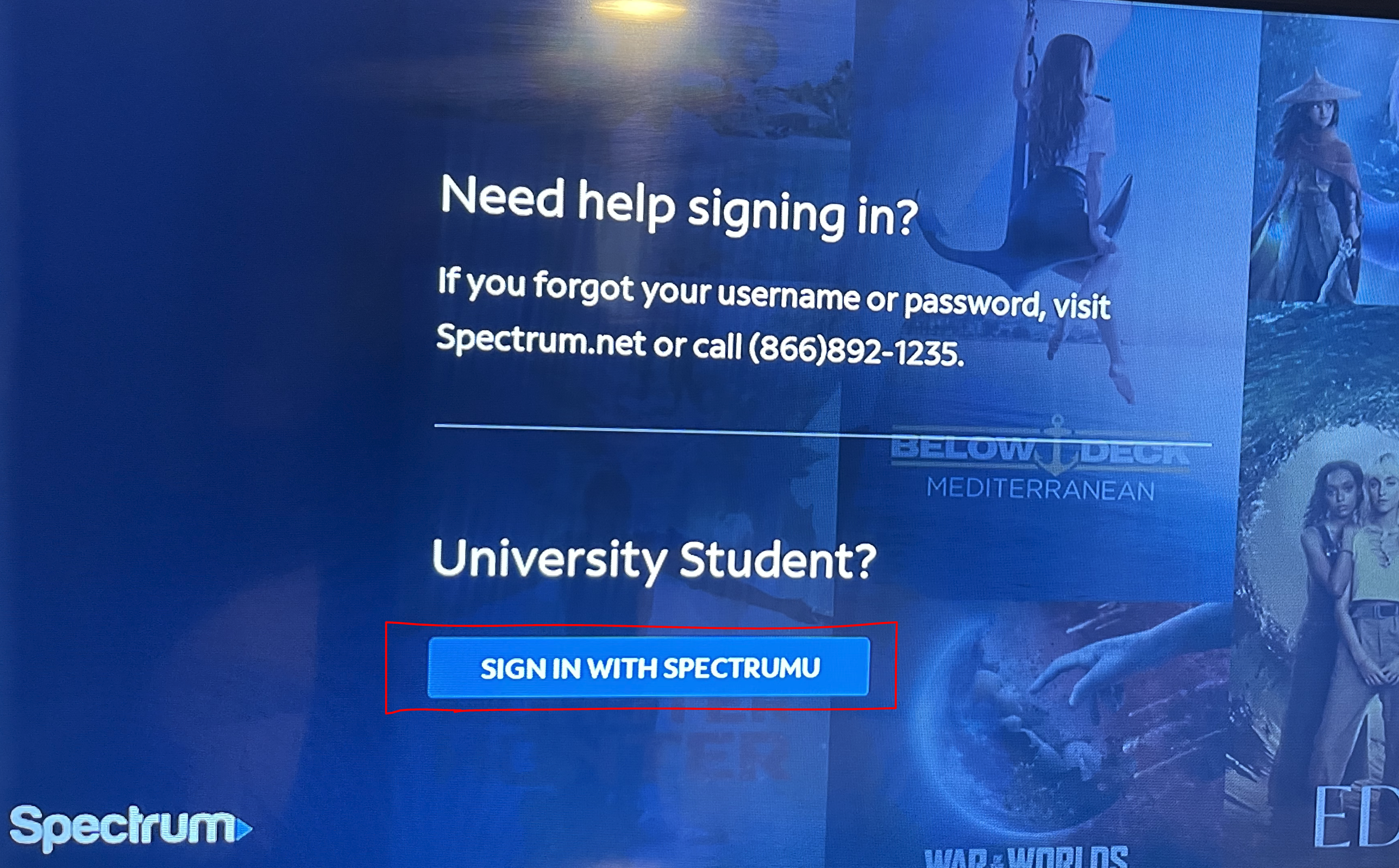
- Choose 'Sign-in with SpectrumU'
- Next, your TV should display the SpectrumU "Let's Get Started" activation screen.
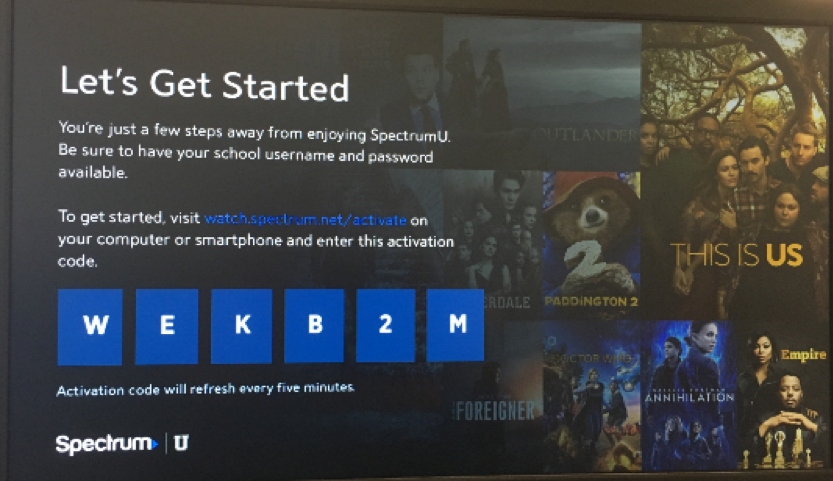
- From a computer or smartphone, visit watch.spectrum.net/activate and enter the activation code that's displayed on the Roku TV and click "Submit."

- In the "Enter your school domain" dialog, enter ucumberlands.edu and click "Submit."
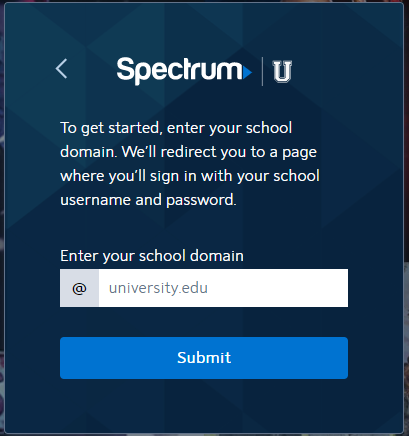
- Once the activation code has been verified, you'll be redirected to UC Login. Log in using your UC credentials.
- After successfully logging in and accepting the license agreement, you will receive a success screen.
To learn how to use the SpectrumTV app after successfully logging in, please visit the Spectrum Roku site.
How do I watch SpectrumU on my Roku?
Modified on: Tue, Apr 14, 2026 8:45 AM
Yes No
Sorry we couldn't be helpful. Help us improve this article with your feedback.